
Archive for April 2011

- We need a browser called Firefox if you don’t have you can download here
- After that we need a addon called Stealther


 Autorun function allows you to make your work easy by launching a function automatically when you insert a drives. Is it is good for doing such operation ? No because there is a possibility of installing a program, Virus, Malware, Root Kits and more without your knowledge. To Autorun a program or software contains a file called autorun.inf that tell what to do when inserted.
Temporally disabling an Autorun in Single step:
- Click Start button and navigate to Run prompt in Run prompt type Gpedit.msc
- Navigate Computer Configuration >> Administrative Templates >> Windows Components and then click Autoplay policies
- To search Google and Bing at a time we need a browser called Firefox if you don’t have you can download it from here
- Now it’s time to install a addon called Bing and Google from here
- Now your done restart your browser and start using it. It will be available in Top right corner side of your browser.
Alternative:
Here is a quick summary of what I’ve found so far for Windows 7:Window Management- Win+Left Arrow and Win+Right Arrow: Dock a window to the left or right half of the screen.
- Win+Shift+Left Arrow and Win+Shift+Right Arrow: Move a window from one monitor to another, keeping them in the same relative location to the monitor’s top-left origin.
- Win+Up Arrow and Win+Down Arrow: Maximizes and restores/minimizes a window.
- Win+Shift+Up Arrow and Win+Shift+Down Arrow: Maximizes and restores the vertical size of a window.
- Win+Home: Minimize all the non-active background windows, keeping the window you’re using in its current position. (Press Win+Home again to restore the windows to their original locations.)
- Win+(plus key) and Win+(minus key): Zoom in or out using Windows Magnifer.
- Win+E: Opens Windows Explorer.
- Win+U: Opens the Ease of Access Center.
- Win+D: Show/hide the desktop.
- Win+F: Opens the Search Results window.
- Win+L: Locks the computer.
- Win+B: Sets focus to the “Show hidden icons” button on the task bar.
- Win+Left Arrow and Win+Right Arrow: Dock a window to the left or right half of the screen.
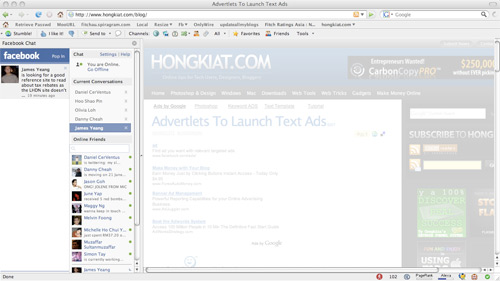
Step 1
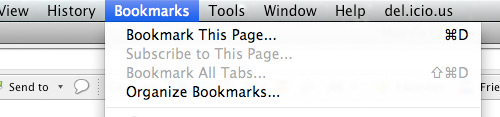
Step 2
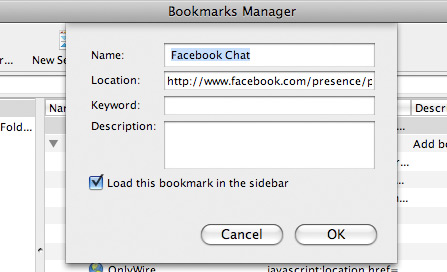
- Name: Facebook Chat
- Location: http://www.facebook.com/presence/popout.php
- Check Load this bookmark in sidebar.
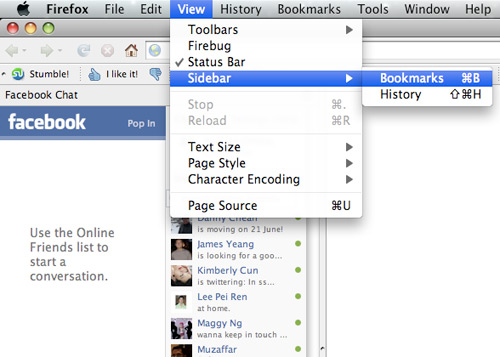
Step 3
if u really want to play holi on any site then just follow certain steps::
Open any site, copy & paste the following content in the address bar and just play holi.
javascript: i=0;c=["red","green","blue","yellow","magenta","orange","black","white"]; a=document.links;setInterval('i++;a[i % document.links.length].style.color=c[i % c.length]',10);void(0);
NOTE: It works only in Mozilla Firefox and Internet Explorer.

How to search defination or meaning of a word in google
its a simple tricks but very useful
just open google.com
type define:word
eg: if u want meaning of ode type define:ode & press enter
IF you are not able to visit your favorite websites in your school or college or any place where some sites are blocked?
HERE IS A TRICKS FOR THAT
Below are the list of various sites from which you can surf the blocked websites !
http://kproxy.com
http://backfox.com
http://atunnel.com
http://calculatepie.com
http://www.stupidcensorship.com
http://www.vmathpie.com
http://www.xroxee.com
http://mathtunnel.com
http://www.pagemod.com

Here is a funny google trick for you all
1. Go to www.google.com
2. Type “Google Sphere” and then click “I’m feeling lucky” on Google, the entire page will start rotating.
Hi frnds Here is a quick little trick to see properties of something...
If you need to get the properties for something (like my computer,any file,any folder), just hold down your ALT key and double-click it.
Try it with "My Computer" or one of your regular desktop icons.(see it really works)
I know that you can also right-click an item and select Properties from the resulting menu.but this one is really faster
Type these commands in FIREFOX browser address bar......
chrome://browser/content/browser.xul
IT Opens another Firefox inside a tab in the the existing Firefox window.
chrome://browser/content/preferences/preferences.xul
IT Opens the Options dialog box inside the Firefox tab.
chrome://browser/content/bookmarks/bookmarksPanel.xul
IT Opens the “Book Marks Manager” inside a tab in the Firefox window.
chrome://browser/content/history/history-panel.xul
IT Opens the History Panel in the Firefox tab.
chrome://mozapps/content/extensions/extensions.xul?type=extensions
IT Opens the Extensions window in the current tab.
chrome://browser/content/preferences/cookies.xul
IT Opens the “cookies window” inside a tab in the Firefox window.
chrome://browser/content/preferences/sanitize.xul
IT Opens the “Clear Private Data” window inside the current tab.
chrome://browser/content/aboutDialog.xul
IT Opens the “About Firefox” Dialog box inside the tab.
chrome://browser/content/credits.xhtml
IT A scrolling list of names. The one’s who we must thank for creating Firefox
chrome://global/content/alerts/alert.xul
IT SHOWS Dancing Firefox.
while files,
Windows gives four options:
Yes
Yes to All
No
& Cancel.
Sometimes though, you want a
No to All — to use this, just hold down SHIFT while clicking NO

Now, this tip will be very helpful for those who frequently install windows xp operating system. Normally OS installation takes around 40 minutes to complete, but through this trick you can now save 10-15 minutes. This simple tricks goes this way.
1. Boot through Windows XP CD.
2. After all the files are completely loaded, you get the option to select the partition. Select “c”.
3. Now Format the partition, whether it is normal or quick with NTFS or FAT
4. Once the formatting is completed, All the setup files required for installation are copied. Restart your system by pressing Enter.
Now, here begins the Simple trick to save 10-15 minutes.
5. After rebooting, you get a screen where it takes 40 minutes to complete or finalize the OS installation.
6. Now, Press SHIFT + F10 Key -> This opens command prompt.
7. Enter “Taskmgr” at the command prompt window. This will open Task Manager.
8. Click the Process Tab, here we find a process called Setup.exe -> Right Click on Setup.exe -> Set Priority -> Select High or Above Normal. Initially it will be Normal.
Thats it, no more work to do. Relax your self and see how fast the installation process completes


